iPhone and Android guide
How to find your parked car on iPhone or Android
Apple Maps and Google Maps can both remember a parked car. The right choice depends on your phone, car connection, permissions, and whether you need more than one temporary map marker.
Requirements and steps were checked against the official Apple and Google help pages below and compared with Karto's current product behaviour.
iPhone
Use the Parked Car marker in Apple Maps
Apple Maps can drop a Parked Car marker after your iPhone disconnects from the vehicle's Bluetooth or CarPlay system and you leave the vehicle. Apple says Location Services, Significant Locations, and Show Parked Location in Maps must be enabled.
To return, open Maps and search for Parked Car or choose it below Siri Suggestions, then start directions. You can view or edit the location and add notes. Apple also notes that familiar places such as home or work may not receive a parked-car marker.
Android and iPhone
Save or find the parking marker in Google Maps
Google's current iPhone guidance also describes automatic saving through Bluetooth, CarPlay, USB, or optional motion detection. On iPhone the saved location remains for up to 48 hours unless you remove it or start driving; Android keeps the marker until you clear it.
- 01
Tap the blue location dot
Open Google Maps at the car and tap the dot showing your current position.
- 02
Choose the parking action
On Android choose Save your parking; on iPhone choose Saved parking. Wording can vary slightly by app version and language.
- 03
Add useful context
Open the parking card to add a note, level, photo, or time information where the platform offers it.
- 04
Open directions on the return
Find the parking pin on the map or search for Saved parking or Parking location, then choose Directions.
Comparison
Which option fits the job?
| Need | Apple Maps | Google Maps | Karto |
|---|---|---|---|
| Quick parking marker | Automatic with recognised Bluetooth or CarPlay | Manual; automatic options vary by platform | Manual, widget, or Premium Auto Park |
| Level, block, and photo | Location editing and notes | Level, notes, and photos where supported | Dedicated level, block, row, note, and photo fields |
| Vehicle-based history | Temporary marker | Temporary marker | Parking history linked to a vehicle |
| Same workflow on iPhone and Android | Apple only | Both platforms | Both platforms |
| Indoor garage use | Normal GPS limits apply | Normal GPS limits apply | Manual indoor clues and compass; no indoor-positioning guarantee |
Troubleshooting
If the parked-car marker does not appear
- Confirm Location Services and the map app's location permission
- On iPhone, verify the Bluetooth or CarPlay pairing, Significant Locations, and Show Parked Location
- In Google Maps, confirm you are using the expected Google account and the marker was not cleared
- Inside a garage, supplement every map point with the level, block, row, and a photo
- Use a manual parking save whenever automatic detection does not trigger
Sources
Official help pages
The platform steps were checked against the vendor sources below on the last update date.
Karto
Use one parking habit on both platforms
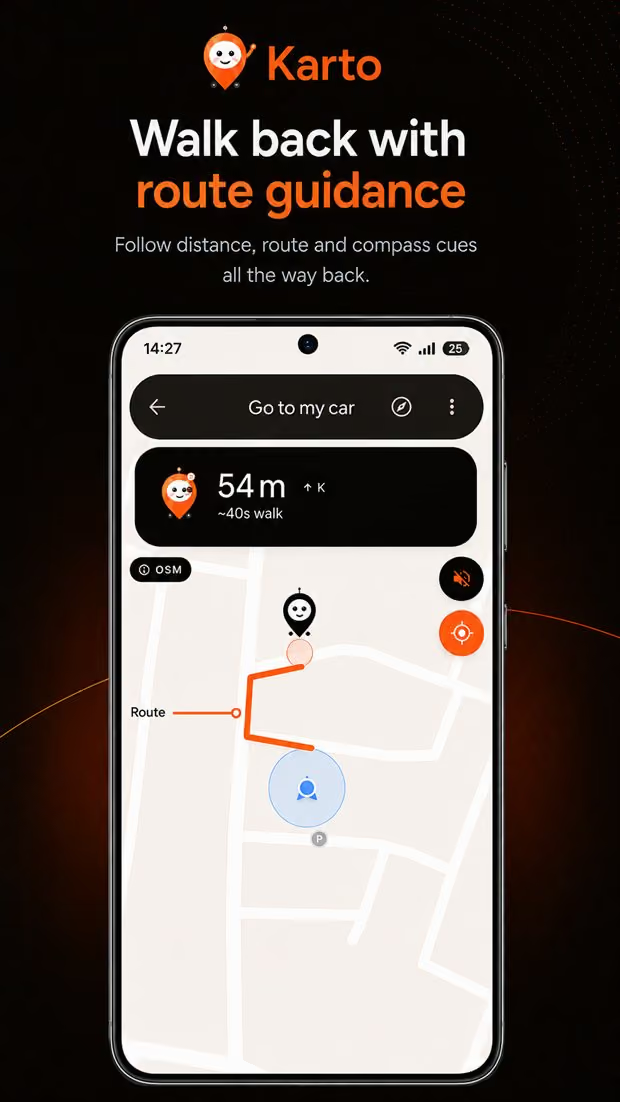
Karto keeps the same parking record and return flow on iPhone and Android.