Google Maps guide
How to save your parking location in Google Maps
Google Maps can remember where you parked on both Android and iPhone. This guide covers how to set it, how to find it again, what it stores, and the situations where it falls short.
Steps were checked against the official Google Maps help pages below and compared with Karto's current product behaviour.
The built-in method
Saving your parking spot with Google Maps
Google Maps has a parking feature on both major platforms. It is free, already installed on most phones, and for street parking it is often all you need. The steps differ slightly between Android and iPhone, and the wording changes between app versions, so the labels below describe what you are looking for rather than an exact string.
On Android, tap the blue dot that marks your current location on the map. A panel opens from the bottom with options for that point; choose the one for saving your parking. The map then shows a parking marker at that position, and you can open it again to add a note, the level you are on, the time remaining on a meter, and photos.
On iPhone, the flow starts the same way: tap the blue location dot and choose the parking option in the panel that appears. Once the spot is set, opening the marker gives you the same set of details — a note, the parking level, a time reminder, and photos. Depending on your version, the saved spot may also appear in the search bar as a shortcut.
On Android, if your phone is paired with your car over Bluetooth or connected to Android Auto, Google Maps can also drop the parking marker automatically when that connection ends. This works without you doing anything, but only when the pairing exists in the first place.
To find the spot again, open Google Maps and either tap the parking marker on the map or search for your saved parking in the search bar. Tapping it gives you the option to get directions, which will normally be walking directions if you are close by.
- 01
Tap the blue dot
Your current location on the map. This opens a panel of actions for that exact point, which is where the parking option lives on both platforms.
- 02
Choose the parking option
The wording varies by version and language, but it is the entry that sets the current point as where you parked. A parking marker appears on the map.
- 03
Add the details you will need
Open the marker and fill in the level, a short note, photos, and the time left on the meter if you paid for one. All of these are optional.
- 04
Open it again on the way back
Tap the parking marker or find the saved spot from the search bar, then start directions to walk back to it.
Limits
Where the Google Maps parking marker runs out
The feature is solid for what it is, but it was built as a small addition to a navigation app rather than as a parking tool, and that shows in a few places worth knowing before you rely on it.
The most important limit is not the app at all — it is the hardware. The marker is placed at whatever coordinate your phone believed it was at when you saved. Underground or inside a multi-storey structure, that coordinate is frequently wrong by tens of metres, and it has no concept of which floor you are on. A perfectly saved marker can still put you at the entrance ramp instead of your bay.
- No floor awareness: the marker is a point on a flat map, so level three and level one look identical.
- It clears itself: the saved spot expires or is replaced when a new one is set, so there is no history to look back through.
- One car only: there is no way to track two vehicles separately.
- Automatic detection needs a Bluetooth or Android Auto pairing, so it does not apply to most iPhone users or to anyone driving an older car.
- The details you add live inside the marker; when the marker goes, the note and photos go with it.
The harder case
What changes in a multi-storey garage
The gap opens up in exactly the place people most often lose their car: a large indoor car park. Concrete and steel block the satellite signal, so the phone holds the last position it was confident about. Meanwhile the building itself is organised around information a map does not hold — a level number, a block letter, an aisle, the nearest lift.
This is why the practical advice for garages is always the same regardless of which app you use: write down the level and the block, and take one photo of the nearest pillar or bay sign. Those three things are what actually walk you back, and they do not depend on signal at all.
The question is only whether your tool keeps them together with the location, keeps them after the trip, and shows them to you at the moment you are walking back rather than making you dig through a camera roll.
Alternative
Where Karto fits
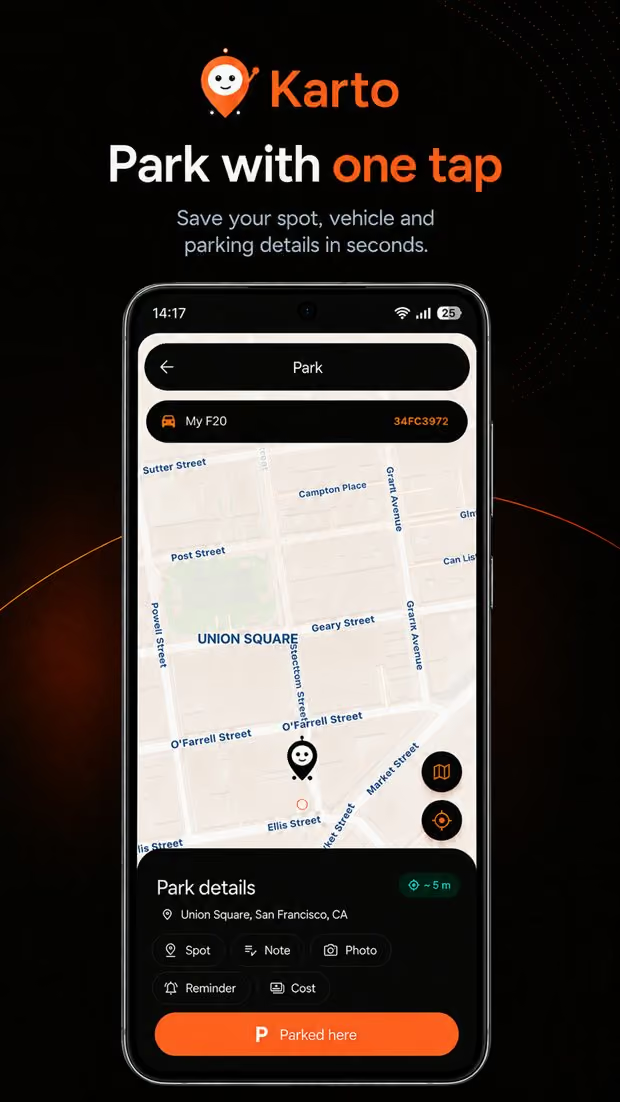
Karto is a dedicated parking app, which means the fields that matter indoors are part of the record instead of a note attached to a pin. Level, block, row, a photo, meter time, and which car it was are all saved together, kept in your history, and shown alongside the walking directions on the way back.
It also keeps working when the connection does not. The record is written on your device and syncs later, which matters because garages are precisely where you have no data. Where the map becomes unreliable, Karto switches to a compass showing a bearing and a distance rather than drawing a route line it cannot support.
Whether that is worth installing another app depends entirely on where you park. If it is mostly streets you know, the built-in feature is the sensible choice.
| Google Maps | Karto | |
|---|---|---|
| Level and block as fields | Level only, inside the marker | Level, block, and row |
| Photo of the spot | Yes, attached to the marker | Yes, shown with the directions |
| Parking history | No — the marker is replaced | Yes, with cost tracking |
| More than one vehicle | No | Yes |
| Works with no connection | Partly, map dependent | Yes, offline by default |
| Automatic saving | Bluetooth or Android Auto only | Motion based, Premium |
| Compass fallback indoors | No | Yes |
| Watch app | Limited | Apple Watch and Wear OS |
Sources
Official help pages
The platform steps were checked against the vendor sources below on the last update date.
Karto
If the built-in marker is not enough
Karto keeps the level, block, photo, and history in one record and works offline where garages need it most.